
SkillsFuture Credit
Union Training Assistance Programme (UTAP)

>> Click here to read more on Union Training Assistance Programme (UTAP) Home page
What is the Union Training Assistance Programme (UTAP)?
UTAP is a training benefit for NTUC members to defray their cost of training. This benefit is to encourage more NTUC members to go for skills upgrading.
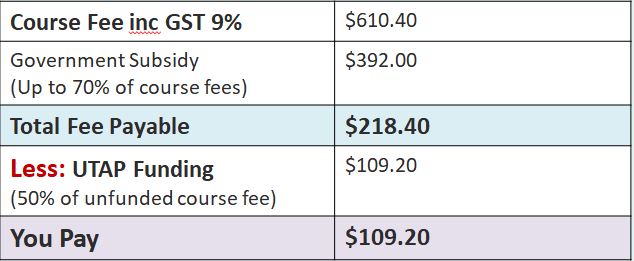
NTUC members enjoy 50% unfunded** course fee support for up to $250 each year when you sign up for courses supported under UTAP. NTUC members aged 40 and above will get increased funding support from $250 to $500.
Here’s an example on how you can utilize UTAP:
3 days – Office 365 – Advanced Excel 2021 and Data Analytics – Level 2 by Genetic Computer School
Who can apply?
All NTUC members can apply for UTAP. However, the following criteria must be met to be eligible for UTAP:
Paid-up union membership before course commencement, throughout whole course duration and at the point of claim
Course by training provider must be supported under UTAP, and training must commence within the supported period
Course must not be funded through company sponsorship or other types of funding
Member must achieve a minimum of 75% attendance for each application and sat for all prescribed examination(s), if any
UTAP application must be submitted within 6 months after course completion
Please refer to the attached UTAP Application Guide for members to apply UTAP via the U-Portal.
Should your participants have queries on the funding scheme, they can call NTUC Membership Hotline at 6213-8008.
Courses supported for UTAP funding:
WSQ Productivity Improvement using Mobile Devices level 1
WSQ Productivity Improvement using Mobile Devices level 2
WSQ Illustration and Graphics Design using Mobile Apps – Level 2
2 days – Office 365 – Excel 2021 and Data Analytics – level 1
3 days – Office 365 – Advanced Excel 2021 and Data Analytics – level 2
2 days – Presentation Essentials
WSQ Facebook and Instagram – Social Media Marketing
WSQ WordPress Web Design and Content Management level 3
WSQ Illustration using Drawing and Digital Design – level 3
WSQ Photos Editing – level 3
WSQ Design for Visual Collaterals – Level 3
Steps to apply for UTAP
Step 1: Go to http://skillsupgrade.ntuc.org.sg Click ‘Uportal’ to log in.
Step 2: Login to your U Portal account
Step 3: Choose either SingPass Mobile or Uportal Account to login.
Step 3a: Login via SingPass Mobile App
Step 3a: Login in with Uportal Account
Step 4: Click on e-Services, UTAP Application
Step 5: Click “Read More” to proceed
Step 6: Declare membership status before proceeding. Check on either box and click “Submit”. If non-member, you will be directed to membership sign up page.
Step 7: Fill in your course information
Step 8: Check that your particulars are correct
Step 9: Ensure your bank account information is correct. Click “Submit” once you have completed all compulsory fields.
Step 10: When you’re ready, click ‘Submit’